Upload from Drive or Dropbox
If you store your video files in Google Drive or Dropbox, you can import them directly into Clik without downloading them to your computer first. This is especially convenient when working from different devices or when your local storage is limited.
How to Upload from Cloud Storage
Click "Upload footage" or "Upload Content" from your project, then choose either "Continue with Google" or "Upload with Dropbox" from the upload dialog.
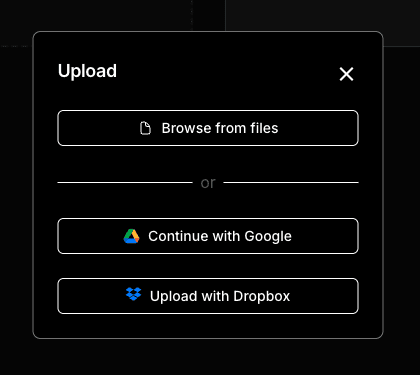
You'll be prompted to sign in to your Google or Dropbox account if you haven't already. Once connected, you can browse your cloud storage and select the video files you want to import.
Selecting Files
Both Google Drive and Dropbox allow you to select multiple files at once. Simply check the boxes next to each video you want to upload, then confirm your selection. The files will download to Clik and begin uploading to your project.
Google Drive Tips
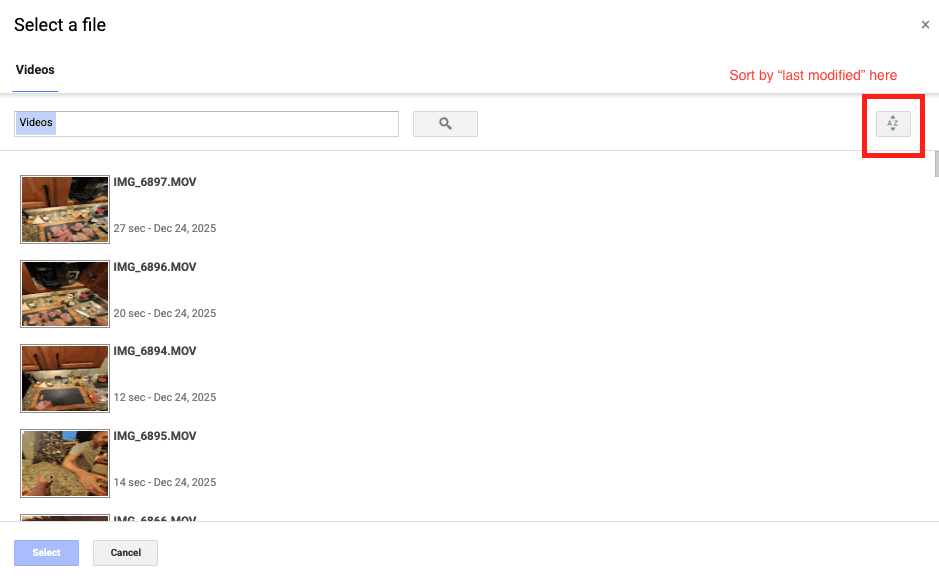
For Google Drive, it’s crucial your files are hosted in the main “My Drive” folder, and not in a sub folder. When you see this pop-up, you’ll see all the files in your main drive. Google Drive doesn’t allow us to modify this.
Sort by “last modified” and you’ll see your most recent uploads.
File Size Limits
Cloud storage uploads have a 2 GB limit per file and support videos up to 1 hour long. The file size limit is due to browser limitations when streaming files from cloud providers. If you have files larger than 2 GB, we recommend downloading them to your computer first and using the desktop upload method, which supports files up to 20 GB.
Upload Process
When you upload from Google Drive or Dropbox, the files first download to your browser, then upload to Clik. You'll see progress for both steps in the uploads panel. This two-step process means cloud uploads may take a bit longer than desktop uploads, especially on slower internet connections.
Best Use Cases
Cloud storage uploads work great for:
Smaller video files under 2 GB
Files already synced to Google Drive or Dropbox
Working from a device with limited local storage
Accessing footage from multiple locations
For larger files or faster uploads, desktop upload is your best option.