Edit by Conversation
Conversation editing is Clik's most powerful feature—it lets you make edits by simply typing what you want in natural language. Instead of manually trimming dozens of clips or hunting for specific moments, you can ask Clik to do it for you in seconds.
How Conversation Editing Works
At the bottom of your editing interface, you'll find a text input where you can type editing requests. Clik's AI understands your footage and can make complex edits based on simple instructions.
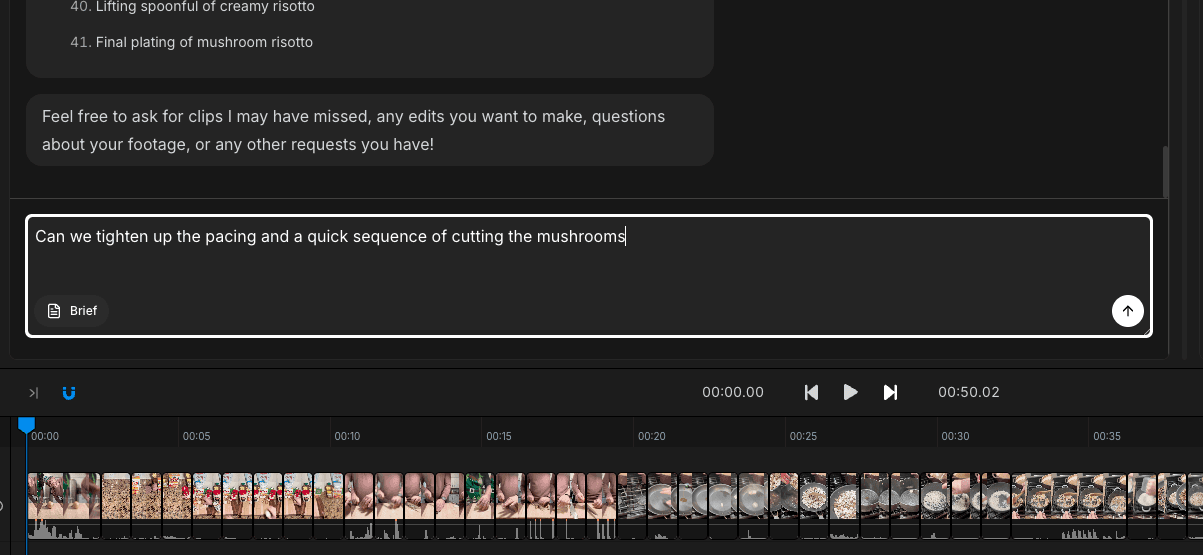
After you submit a request, the AI analyzes your footage, makes the requested changes, and updates your timeline automatically. You can see the changes happen in real-time and undo them if they're not quite right.
Example Editing Requests
Here are some powerful ways to use conversation editing:
Pacing and Timing
"Remove all pauses longer than 2 seconds"
"Tighten up the pacing and create a quick sequence of cutting the mushrooms"
"Speed up the stirring section"
"Slow down the plating sequence for emphasis"
Finding and Adding Content
"Add all shots of tomatoes"
"Include every time I mention olive oil"
"Find the closeup of the final dish"
"Show the ingredient prep at the beginning"
Removing Content
"Remove shaky footage"
"Cut out the parts where I'm silent"
"Delete all shots of the cutting board"
"Remove the section where I made a mistake"
Structural Changes
"Reorder the scenes so prep comes first"
"Move the final plating to the end"
"Organize this chronologically"
"Put all the ingredient shots together"
Tips for Better Results
Be specific - Instead of "make it better," try "remove long pauses and tighten the pacing"
Reference your brief - The AI knows what you told it in your Video Brief, so you can say things like "follow the pacing I requested"
One task at a time - Break complex edits into smaller requests. Make one change, review it, then request the next
Use context - For cooking videos, you can reference ingredients, actions, and recipe steps by name
When to Use Conversation Editing
Conversation editing excels at:
Making broad changes across your entire video
Finding and organizing specific moments
Adjusting pacing and removing dead space
Restructuring your video's flow
For precise frame-by-frame adjustments or positioning elements on screen, you'll want to use the timeline or inspector instead. Conversation editing and manual editing work great together—use whichever tool fits the task.