Add Clips via Search
Clik's search feature helps you instantly find any moment in your footage by searching two ways: what appears visually on screen, or what's spoken in your dialogue. This makes it easy to locate specific clips and add them to your timeline, especially when you need moments that the AI editing agent may have missed.
How to Search Your Footage
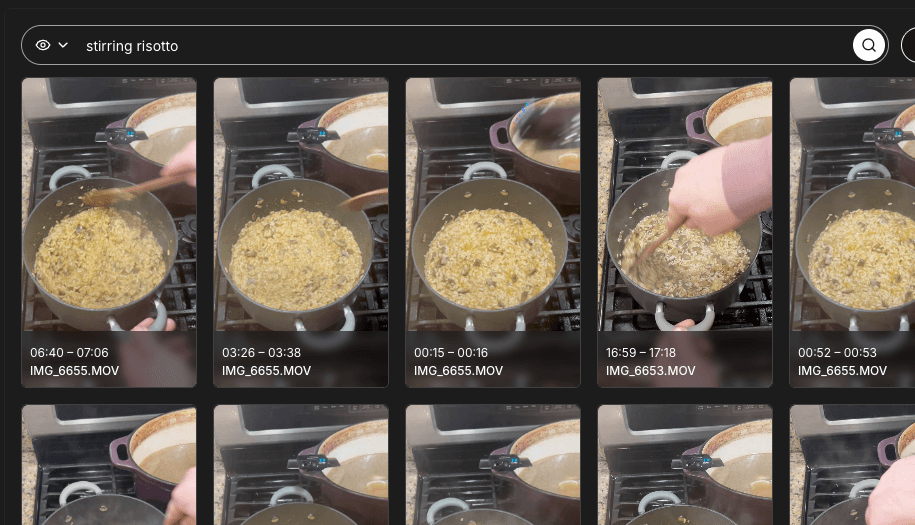
Click the Search icon in the left sidebar to open the search panel. Type what you're looking for in the search box, and Clik will scan all your footage for matching moments.
Two Types of Search: Visual and Dialogue
Clik searches your footage in two powerful ways:
Visual Search - Finds what appears on screen. The AI analyzes your video frames to detect objects, ingredients, actions, and visual elements. For cooking videos, Clik automatically identifies ingredients like tomatoes or garlic, cooking equipment like pans or bowls, and actions like chopping or stirring.
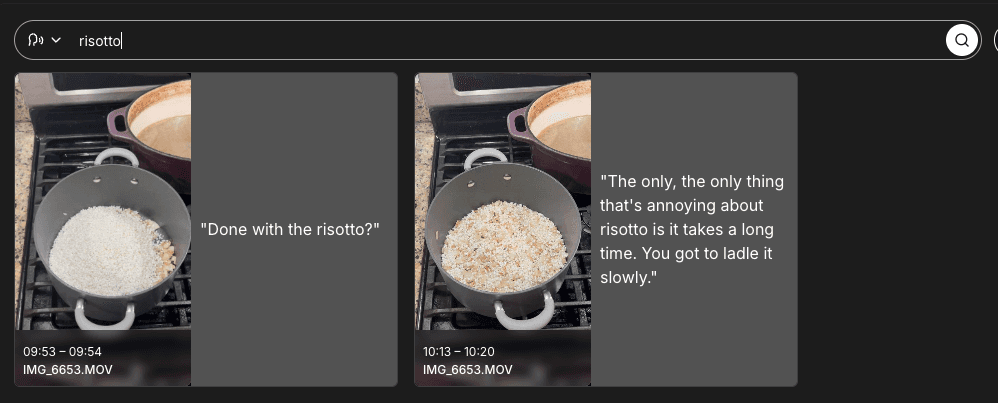
Dialogue Search - Finds what you say in your video. Clik transcribes your audio automatically, so you can search for any word or phrase you spoke. This is perfect when you remember talking about something but don't remember when.
You don't need to specify which type of search you want—Clik searches both simultaneously and shows you all matching results.
What You Can Search For
Visual Search Examples:
Ingredients: "tomatoes," "olive oil," "garlic," "onions"
Cooking equipment: "pan," "cutting board," "bowl," "knife"
Cooking actions: "stirring," "chopping," "plating," "sautéing"
Visual elements: "ingredient prep," "final presentation," "closeup"
Dialogue Search Examples:
Specific phrases you spoke: "done with the risotto?"
Ingredient mentions: Search "mushroom" to find when you talked about mushrooms
Technique explanations: Words like "simmer" or "reduce" when you explained steps
Any word or phrase from your narration
Using Search Results
Each search result shows a thumbnail preview, timestamp, and either a visual match or the spoken words that matched your query. You can:
Drag and Drop to Timeline - Click and drag any search result directly onto your timeline to add that clip. This is the fastest way to build your edit or add supplemental clips.
Preview Before Adding - Hover on a result to preview the exact moment before adding it to your project.
Finding Missed Clips
Search is especially useful for adding clips that Clik's editing agent may have missed in the initial rough cut. If the AI didn't include a specific ingredient shot, cooking action, or quote you wanted, simply:
Search for that moment (visually or by dialogue)
Find it in the search results
Drag it directly to your timeline where you want it
This gives you full control to supplement the AI's edit with any moments you feel are important.
When to Use Search
Search is perfect when you:
Need to find a specific moment the AI didn't include
Want to gather all shots of one ingredient or action
Remember saying something but don't know when
Need to add supplemental B-roll or closeups
Are looking for particular visual elements to enhance your edit
Unlike scrubbing through your timeline or footage, search finds every relevant moment instantly—whether it's visible on screen or spoken in your audio—saving you time and ensuring you don't miss anything important.