Export an XML
XML exports let you take your Clik project into professional editing software like Adobe Premiere Pro, DaVinci Resolve, or Final Cut Pro. This gives you the flexibility to use Clik for fast AI-powered editing, then add finishing touches in your editor of choice.
Why Export XML
An XML file is a project file that describes your timeline—where clips are positioned, how they're trimmed, and how they're arranged. When you import an XML into video editing software, it recreates your Clik timeline with links to your original source footage.
This workflow is perfect when you want to:
Add advanced color grading in DaVinci Resolve
Apply complex effects not available in Clik
Mix audio with professional tools
Add additional footage or B-roll
Use plugins or templates from other software
Choosing Your XML Format
Click the "Export" button in the top right corner and select the XML format that matches your editing software:
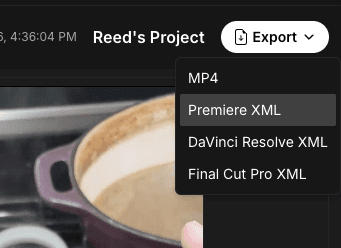
Premiere XML - For Adobe Premiere Pro
DaVinci Resolve XML - For DaVinci Resolve and DaVinci Resolve Studio
Final Cut Pro XML - For Final Cut Pro
Choose the format that matches your software to ensure the best compatibility.
How XML Export Works
When you export an XML:
Clik generates a project file describing your timeline structure
The XML includes references to your original source files
The file downloads to your computer
You import the XML into your editing software
Your editing software reconnects the timeline to your original footage
The XML itself is small—just a text file describing your project. It doesn't contain the actual video, which means your original high-quality footage is preserved without re-encoding.
Relinking Your Project
After importing the XML into your editing software, you'll need to relink it with your source footage. This means pointing your editor to the original video files you uploaded to Clik.
Make sure you have access to your original footage files on your computer. Your editing software will prompt you to locate the files, then reconnect them to the imported timeline.
What Transfers with XML
XML exports include:
Timeline structure and clip arrangement
Clip in/out points (trim information)
Clip positions and basic layout
Track organization
References to source files
Note that some Clik-specific features may not transfer perfectly:
AI-generated effects or edits
Captions (may need to be recreated)
Some text overlays (depending on software compatibility)
The core edit—your clip selection, timing, and arrangement—will transfer, giving you a solid foundation to continue editing.
Making Finishing Touches
Once your project is open in your professional editing software, you can:
Apply advanced color correction and grading
Add complex motion graphics or effects
Fine-tune audio with professional mixing tools
Export with specific codec or quality settings
Integrate with other projects or templates
This workflow combines Clik's speed for the rough cut with the power of professional tools for final polish.
Best Practices
Keep your original footage organized and accessible for relinking
Export the XML after you've finalized your Clik edit
Test the XML import with a small project first if you're new to this workflow
Check that all clips relink correctly before making additional edits
XML exports give you the best of both worlds: Clik's AI-powered efficiency for the heavy lifting, and professional software's advanced tools for the finishing touches.