Upload from Desktop
Uploading files from your desktop is the fastest way to get your footage into Clik. With support for files up to 20 GB, you can upload even your longest, highest-quality recordings without worrying about compression or file size limits.
How to Upload from Desktop
When you're ready to upload, click "Upload Content" from your project. In the upload dialog, choose "Browse from files" to select videos from your computer.
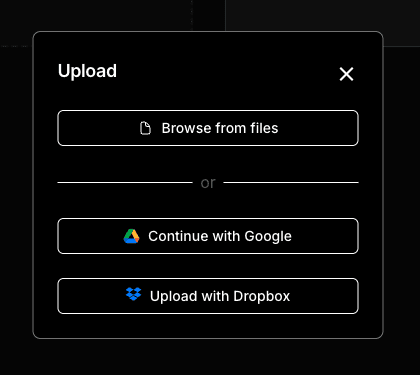
You can select multiple files at once by holding Shift or Command/Ctrl while clicking. Clik will queue all selected files and upload them one at a time, showing you the progress for each file.
Drag and Drop
For even faster uploading, you can drag video files directly from your desktop or Finder/Explorer window onto the upload area in Clik. This skips the file browser and immediately starts the upload process.
If you accidentally select a file you've already uploaded, don't worry. Clik has duplicate detection built in and will skip files that are already in your project.
Upload Progress
While your files upload, you can track progress in the uploads panel. This shows you which file is currently uploading, how much time remains, and how many files are in the queue. Uploads happen in the background, so you can continue working on your Video Brief or reviewing other footage while waiting. During this time, feel free to navigate to other tabs or applications, but do not close your computer or let it fall asleep.
File Size and Format
Desktop uploads support files up to 20 GB and videos up to 1 hour long. This makes it ideal for uploading 4K footage, long recordings, or multiple files from a full shoot. Clik supports all major video formats including MP4, MOV, AVI, and more.
Once your uploads complete, Clik processes your footage and creates multiple quality versions for smooth editing. The original file quality is preserved and used for your final export.