Add Clips via Storyboard
The Project Storyboard gives you a bird's-eye view of your video organized by scenes. For cooking videos, Clik automatically detects recipe steps and groups your footage into logical sections, making it easy to understand your video's structure and add clips to your timeline.
Understanding the Storyboard
Click the Storyboard icon in the left sidebar to open the storyboard view. You'll see your video broken down into scenes, each with a descriptive title like "Kitchen Prep and Ingredient Reveal" or "Onion Chopping and Video Setup."
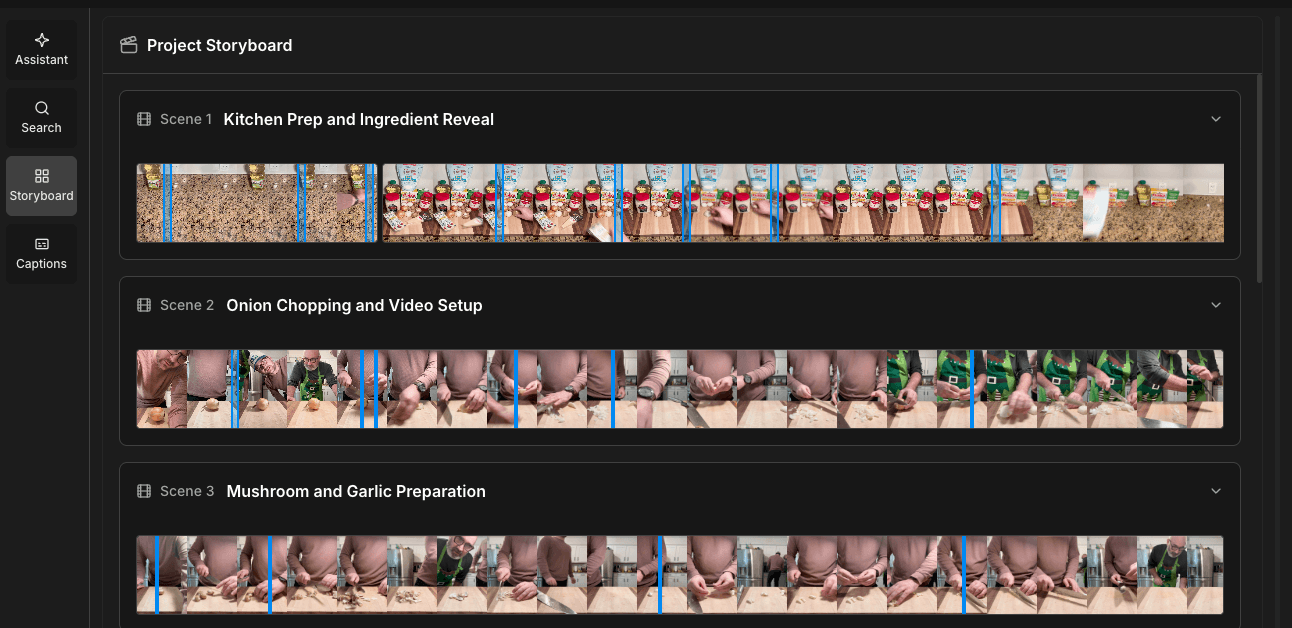
Each scene contains thumbnail previews of all the clips that belong to that part of your video. The thumbnails appear in chronological order, showing you the flow of your footage at a glance.
Scene Organization for Cooking Videos
Clik's AI automatically organizes cooking videos into natural recipe sections:
Ingredient reveals and prep setup
Individual ingredient preparation (chopping, measuring, etc.)
Cooking actions (sautéing, stirring, simmering)
Technique demonstrations
Plating and final presentation
This organization helps you quickly navigate to the part of the recipe you want to work with, without scrubbing through the entire timeline.
Adding Clips from Storyboard
To add a clip from the storyboard to your timeline:
Find the scene containing the moment you want
Hover over any clip thumbnail within that scene
Click to select an in and out point
Click and drag the clip to your timeline
You can add individual clips or select multiple clips from the same scene. This makes it easy to pull in an entire sequence with just a few clicks.
Expanding and Collapsing Scenes
Click the arrow next to any scene title to expand or collapse it. Expanding a scene shows all the individual clips within it. Collapsing scenes helps you focus on specific parts of your video without visual clutter.
When to Use Storyboard
The storyboard is especially useful when you:
Want to see your video's overall structure
Need to find clips related to a specific recipe step
Are reordering major sections of your video
Want to quickly compare different takes of the same action
Need to ensure you haven't missed any important moments
Unlike the timeline, which shows clips in linear sequence, the storyboard groups related content together, making it easier to think about your video in terms of narrative or recipe flow rather than just time.