Captioning Overview
Captions make your videos accessible to viewers who are deaf or hard of hearing, and they help people watch your content in sound-off environments like social media feeds. Clik automatically generates captions for your entire video using AI speech recognition, then lets you customize the styling and edit the text.
Generating Captions
To add captions to your video, click the Captions icon in the left sidebar. You'll see a "Caption Full Video" button that generates captions for all clips on your timeline.
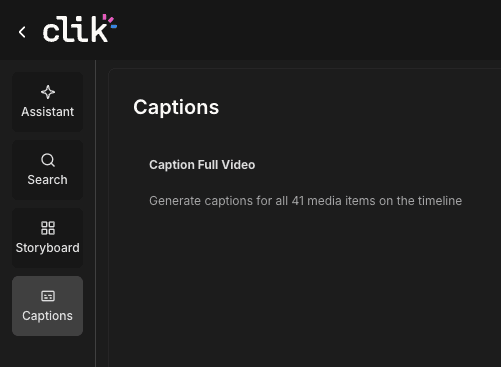
Click the button and Clik will analyze the audio from your video and create synchronized captions. The process typically only takes a few seconds. You'll see a progress indicator while the captions are being generated.
How Captions Appear
Once generated, captions appear as an orange track above your video clips on the timeline. Each caption block represents a one clip of dialogue, timed to match when those words are spoken in your video track.

The captions automatically sync with your audio, appearing at the right moments as your video plays. You can preview them by playing your video—the captions will display on the canvas just as they'll appear in your final export.
Caption Styling
When you select a caption on your timeline, the Inspector panel shows styling options. You can customize:
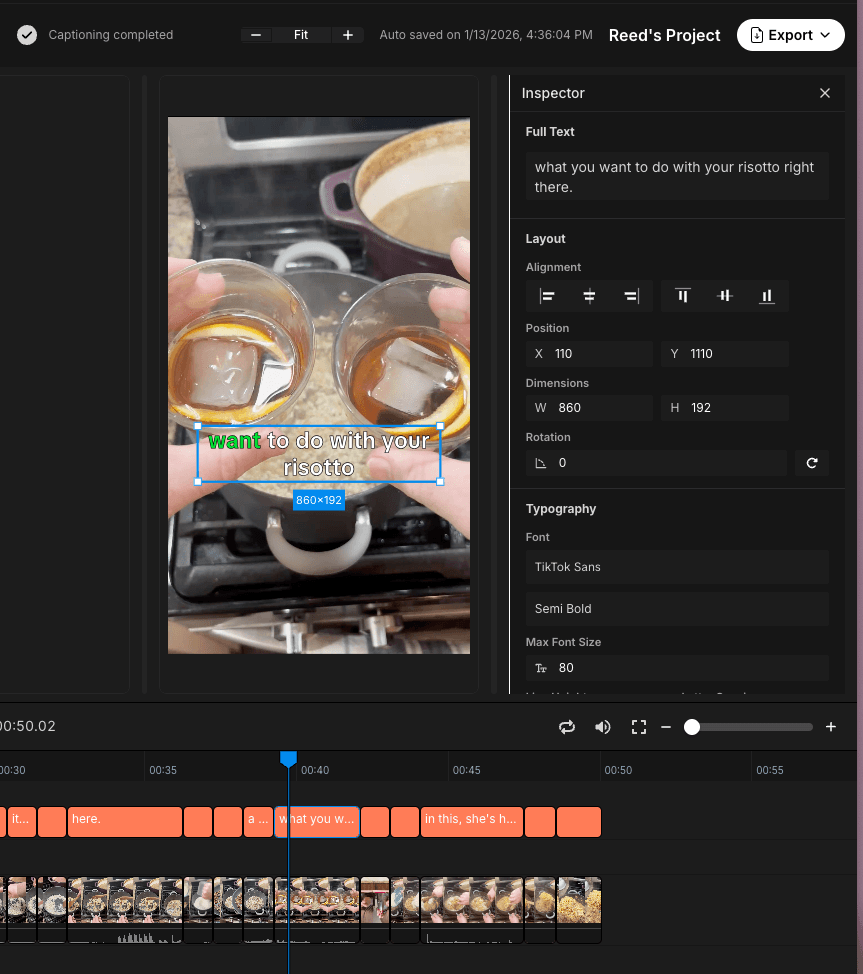
Typography - Choose from various fonts, adjust font size, line height, and letter spacing. Popular caption fonts include TikTok Sans and other clean, readable options.
Colors - Set the text color and highlight color (background). High contrast combinations work best for readability.
Alignment and Direction - Control how captions align on screen and set text direction for different languages.
Opacity - Adjust transparency if you want subtle captions.
Layout - Position captions anywhere on screen using the position and alignment controls.
Caption Settings
The Captions panel also includes settings for how captions display:
Page Duration - Control how long each caption block stays on screen (in milliseconds)
Max Lines - Set how many lines of text appear at once
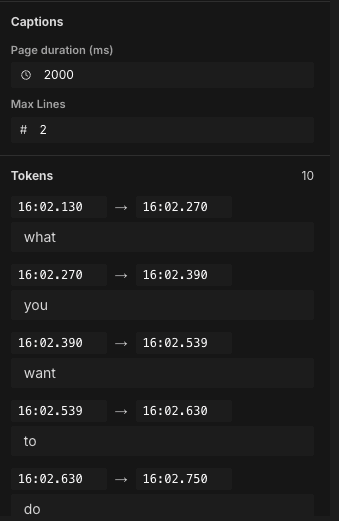
These settings help you balance readability with screen space. Shorter page durations create faster-paced captions, while more lines allow more text per screen.
Editing Caption Text
After captions are generated, you can edit the text to fix transcription errors or adjust wording. Select any caption block and use the Inspector to modify the text. You can also adjust individual word timing for precise synchronization.
See the "Edit Captions" article for detailed instructions on correcting and refining your captions.
Captions in Your Export
When you export your video as an MP4, captions are burned directly into the video file, making them visible to all viewers without requiring subtitle file support. This ensures your captions work everywhere—on social media, websites, or any video player.