Text Overlays
Text overlays let you add titles, labels, ingredient lists, and other text elements directly onto your video. Clik gives you full control over fonts, colors, sizing, and positioning, making it easy to create professional-looking text that matches your style.
Adding Text to Your Video
Click the Text tool (T icon) in the top toolbar to add a text element to your video. A text box will appear on your canvas where you can immediately start typing.
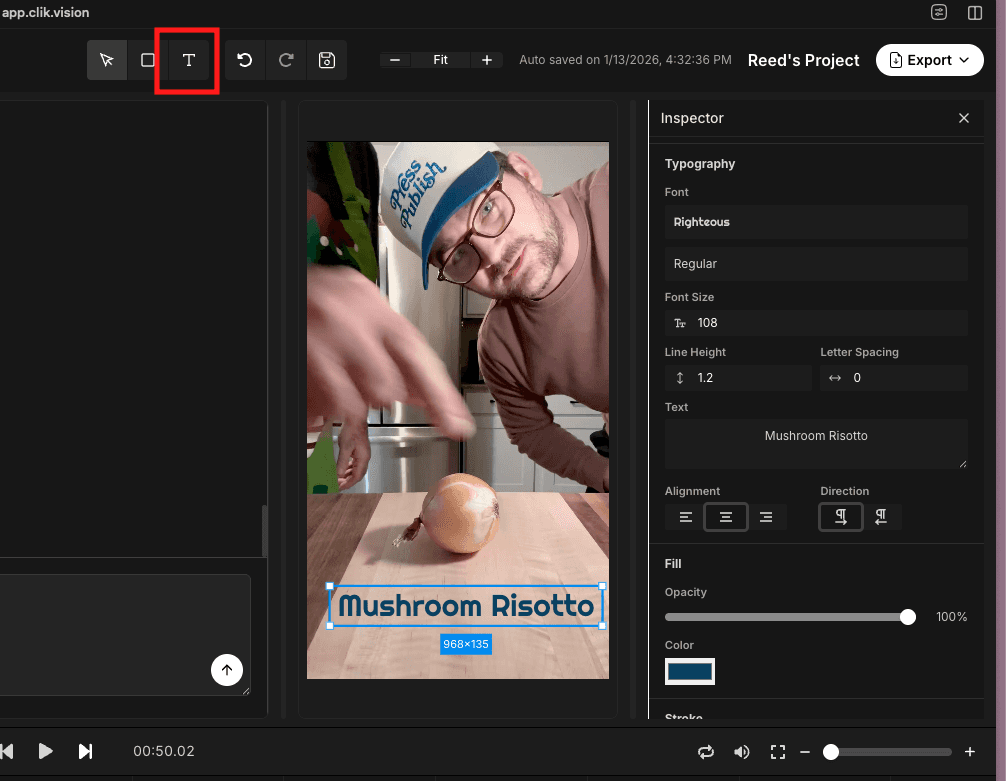
The text appears as a new item on your timeline, showing you exactly when it will be visible in your video. You can resize this timeline item to control how long the text stays on screen.
Editing Text Content
Click any text element on the canvas to edit it. You can:
Type new text directly
Delete and replace existing text
Add multiple lines by pressing Enter
Select portions of text to style differently
The text box automatically expands as you type, or you can resize it manually using the handles.
Typography Controls
When you select a text element, the Inspector panel shows all available typography options:
Font - Choose from hundreds of Google Fonts. Use the dropdown to browse fonts or search for specific ones.
Font Size - Adjust the size using the number input. Larger sizes work better for titles, smaller sizes for subtitles or labels.
Line Height - Control spacing between multiple lines of text. Increase line height for better readability.
Letter Spacing - Adjust spacing between characters. Increase for stylistic effect, decrease for more compact text.
Text Styling
Alignment - Choose left, center, or right alignment for your text. Center alignment works well for titles, left alignment for lists or longer text.
Direction - Set text direction to left-to-right or right-to-left for international language support.
Color - Click the color picker to choose your text color. Pick colors that contrast well with your video for readability.
Opacity - Adjust transparency if you want subtle or semi-transparent text effects.
Advanced Text Options
Stroke - Add an outline around your text for better visibility over busy backgrounds. Adjust stroke width and stroke color independently from the fill color.
Corner Radius - Round the corners of your text background box for a softer look.
Positioning Text
Use the same positioning controls as video clips:
Drag text freely on the canvas to place it anywhere
Use the Position (X, Y) inputs for precise placement
Use alignment buttons to quickly snap text to screen edges
Layer multiple text elements on different timeline tracks
Common Text Overlay Uses
Titles and Headings - Large, centered text to introduce sections of your video. Common for recipe names or chapter titles.
Ingredient Lists - Display ingredients as they're added. Position in a corner so they don't cover important action.
Step Numbers - Label recipe steps with numbers or short descriptions.
Calls to Action - Add "Subscribe" or "Follow for more" text near the end of videos.
Credits and Attribution - Include attribution or credits at the start or end.
Text Timing
Control when text appears and disappears by adjusting its position and length on the timeline:
Drag the text clip on the timeline to change when it appears
Drag the edges to make it stay longer or shorter
Split the timeline to show the same text at multiple times
Layer text over specific video sections by aligning their timeline positions
Tips for Better Text Overlays
Use high-contrast colors so text is readable over your footage
Don't place important text where it covers critical video content
Keep text on screen long enough for viewers to read comfortably
Use consistent fonts and colors throughout your video for a cohesive look
Add stroke/outline to text that appears over varying backgrounds
Preview your text at actual playback speed to ensure readability