Edit Captions
While Clik's AI does an excellent job transcribing your audio, you may want to edit captions to fix mistakes, adjust timing, or change wording. The caption editor gives you full control over every word and its timing.
Accessing Caption Editing
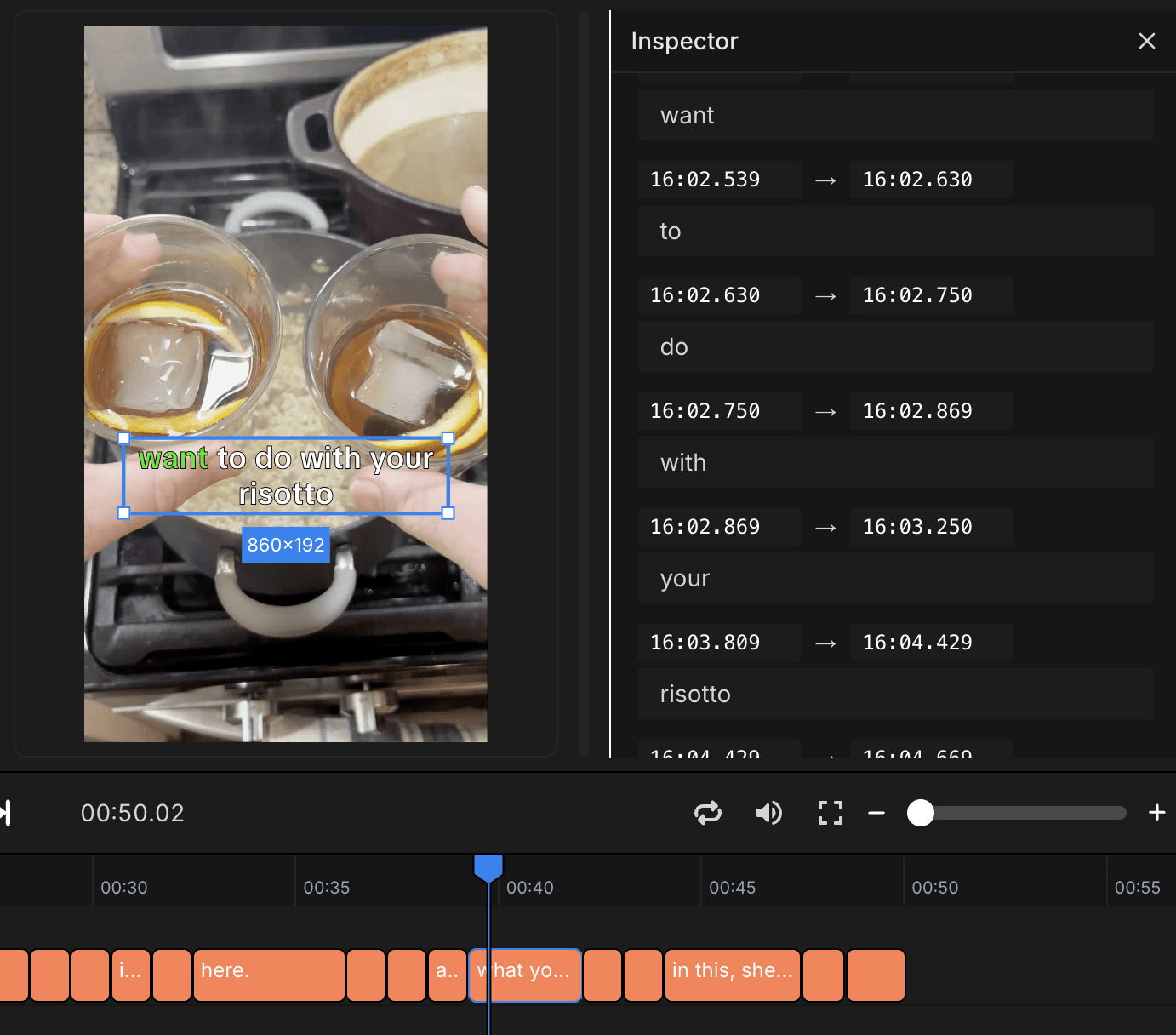
Select any caption block on your timeline to open the Inspector panel. The Inspector shows two main sections for editing:
Full Text - The complete text of the selected caption block. Edit this to change what the caption says.
Tokens - Individual words with their precise timestamps. Use this for fine-tuning timing on specific words.
Editing Caption Text
The easiest way to fix caption errors is through the Full Text field. Click in the text area and edit just like any text editor:
Fix spelling or transcription mistakes
Adjust punctuation
Change wording for clarity
Break long sentences into shorter ones
Remove filler words like "um" or "uh"
Your changes update immediately on the timeline and in the video preview.
Word-Level Timing (Tokens)
For more precise control, scroll down to the Tokens section. Each word appears with its start and end timestamp. This view lets you:
See exactly when each word appears
Adjust timing for individual words
Identify words that are out of sync
Fine-tune synchronization with your audio
Tokens show as start_time → end_time followed by the word. For example, 16:02.130 → 16:02.270 shows a word that appears at 16 minutes, 2.13 seconds and disappears at 16 minutes, 2.27 seconds.
Adjusting Caption Duration
Caption blocks on the timeline work like any other timeline item. You can:
Drag the edges to make captions appear longer or shorter
Move entire caption blocks earlier or later
Delete caption blocks you don't need
Split captions into multiple blocks for better readability
Longer caption durations give viewers more time to read, while shorter durations create faster-paced captions that match quick dialogue.
Caption Styling
Beyond the text itself, you can customize how captions look. The Inspector's Typography section includes:
Font selection
Font size (max font size setting)
Line height and letter spacing
Text alignment (left, center, right)
Text direction (LTR/RTL)
The Fill section controls colors:
Text color
Highlight color (background behind text)
Opacity for subtle effects
Choose high-contrast color combinations to ensure captions remain readable over any background.
Common Caption Edits
Fix transcription errors - AI sometimes mishears words, especially technical terms, names, or words in noisy audio. Simply replace the incorrect text with the right word.
Adjust timing - If captions appear too early or late, drag the caption block on the timeline or adjust individual word tokens.
Remove filler words - Delete "um," "uh," "like," and other filler words to make captions cleaner and easier to read.
Break up long sentences - Split lengthy caption blocks into shorter ones so viewers have time to read without overwhelming the screen.
Add punctuation - Improve readability by adding periods, commas, and question marks where appropriate.
Tips for Better Captions
Preview your video at normal speed to check caption timing and readability
Keep caption text short—viewers should be able to read each block comfortably
Use sentence case or title case consistently throughout your video
Position captions where they don't cover important visual content
Test color combinations to ensure captions are visible over varying backgrounds
Watch your video with sound off to experience it as a deaf viewer would